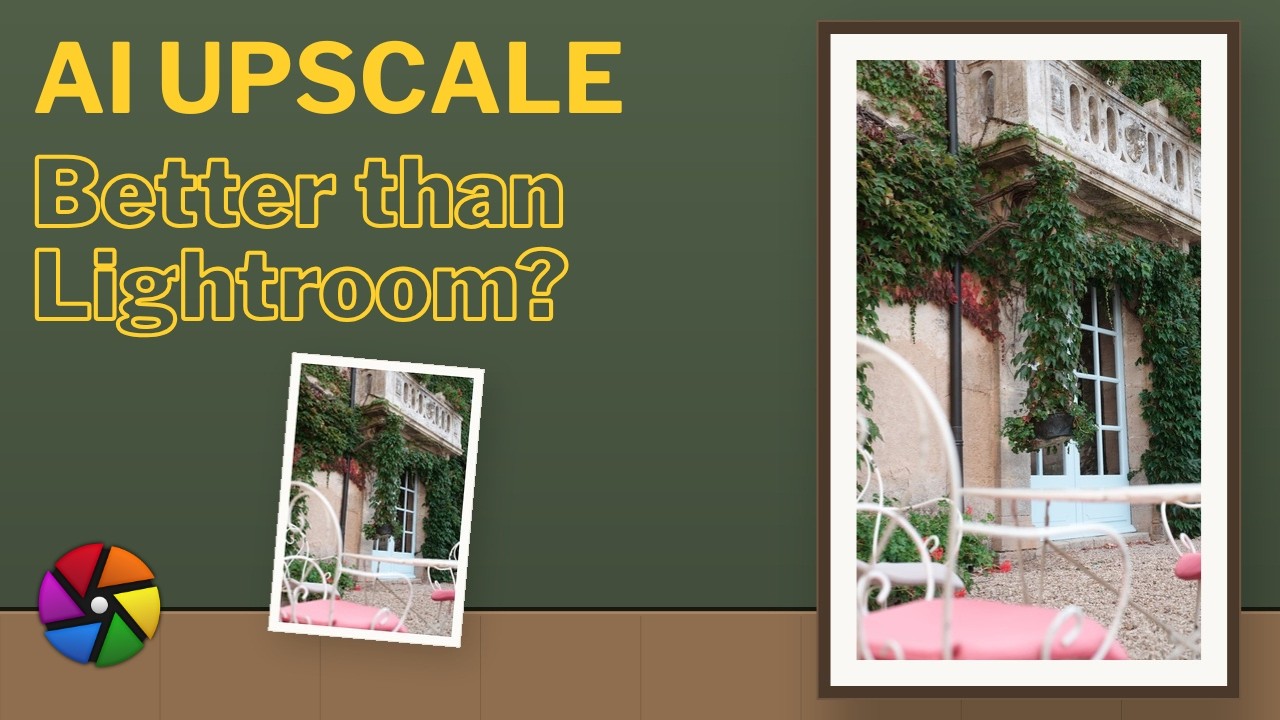
Watch the full tutorial
What is AI Upscaling in Darktable 5.6?
Darktable 5.6 completes its AI trilogy — alongside AI masking and AI denoising — with AI upscaling. This feature goes directly head-to-head with Lightroom’s Super Resolution, letting you increase the megapixel count of your image with a single click, entirely free and open source.
Like Neural Restore Denoise, upscaling is part of the Neural Restore plugin (not a traditional pipeline module). If you haven’t seen the denoise video yet, watch it first — the setup is identical.
How it Works
Upscaling generates a new TIFF file from your original — it’s not non-destructive like standard Darktable modules. Your original file stays untouched, and the new upscaled TIFF is automatically imported into your film roll. This is the same approach Lightroom Super Resolution uses.
One key advantage over Lightroom: Darktable offers both 2x and 4x upscaling, whereas Lightroom is limited to 2x. A 24MP file from a Nikon D750 for example becomes a 97MP file at 4x — though bear in mind that comes with significantly larger file sizes and longer processing times.
Setup
The setup is identical to AI Denoise:
- Go to Settings → AI section
- Download the Upscale model
- Enable the model
- Activate AI features globally
One thing worth noting: upscaling is available in both Darkroom and Lighttable. The Lighttable option is particularly useful because you can batch process multiple images at once — a meaningful advantage over working image by image in Darkroom.
Using the Upscale Function
- Open your image in Darkroom (or select multiple in Lighttable for batch)
- Find Neural Restore on the left panel, select the Upscale tab
- Click Generate Preview — hover over the preview to magnify and inspect detail
- Choose your scale: 2x or 4x
- Set your output TIFF depth and colour profile
- Choose your output folder (default is same as original)
- Hit Process
On an Apple M3 Pro MacBook Pro processing via GPU, a 24MP → 97MP upscale takes roughly 2 minutes. Plan accordingly — run a batch and step away while it processes.
Important: Wide Gamut Warning
This is the most critical thing to know before using upscaling: the upscale model does not handle wide gamut colours. Any colours outside the sRGB range — think vivid sunsets, bright skies, saturated subjects — will be clipped, not compressed. Hard clipping, not a graceful rolloff.
The practical advice: work on your image first, map your colours, and bring everything within a safe gamut before upscaling. Apply AgX or your tone mapper, check your highlights, then upscale the finished result rather than the raw file.
When Should You Actually Use It?
Upscaling is a precision tool, not an everyday one. The most useful cases:
- Printing — pushing a smaller file to A3 or larger where your original megapixel count falls short
- Old or scanned images — breathing new life into archive photos from older cameras or film scans
- Cropped images — recovering resolution after a heavy crop
For most modern cameras shooting at 24MP+, you’re already fine printing A3 without upscaling. Use it when you have a specific reason, not as a routine step.
Darktable Upscale vs Lightroom Super Resolution
| Darktable | Lightroom | |
|---|---|---|
| Max upscale | 4x | 2x |
| Cost | Free | Subscription required |
| Output | TIFF | DNG |
| Wide gamut | Clips | Handles gracefully |
| Batch processing | ✅ | ✅ |
| Speed (24MP→97MP) | ~2 min | Similar |
The wide gamut handling is currently Lightroom’s edge. Everything else — especially the 4x option and the price — favours Darktable. As the model matures, that gamut limitation will likely improve.
What’s Next
This wraps up the Darktable 5.6 AI series. The next video covers the UX and UI improvements in 5.6 — smaller changes that add up to a meaningfully smoother workflow. Stay tuned.